Pages

Showing posts with label technology. Show all posts

Tuesday, January 12, 2016

Displaying python output with GeekTool

Living in Michigan, we are often hit with snow storms that cause us conditions to be too dangerous for driving to school.  These 'snowdays' are great, and every morning when the possibility of a snowday is present, I will often find myself checking our local news website to see if our schools name appears.  This often involves refreshing the website every few minutes (or even seconds! #fingercrossed) during the crucial minutes before I need to take a shower and get in the car or get back into bed.

So the other day when I was doing some web-scraping programming, the idea occurred to me to automate this process, so that I don't have to keep pressing refresh.  So I wrote a little python program that opened up the website, searched the html code for Kent county schools, and outputted the results.  This was the hard part, and one I'm not prepared to fully explain today.

Once I got the program printing what I wanted, I opened up GeekTool.  GeekTool is a mac program that allows you to display words, bits of code, website data, computer data, images, etc. on the background of your desktop.  You'll have to see for yourself various things it can do.

Anyhow, creating a shell geeklet with the following code will cause that python program to run and its output to show up on the computers desktop:
python ~/Documents/script/webscraper.py
In this case, webscaper.py was the name of the program I created -- but you could put the name of any python program there. Then one of the options you can set in GeekTool is how often this program refreshes itself, so I set mine for 60sec. The results:
For a half-hour this morning I sat and read the Bible, sipping coffee, and every 60secs or so looked up and watched as the list populated itself and grew automatically.  And, since you're reading this, eventually I did see my school's name pop up.  Unfortunately, the coffee had done its work and I couldn't fall back asleep.

By the way, the picture of the radar was also self refreshing -- every 300 seconds (5 minutes) GeekTools would fetch the image url, download the image and update my background.  

Apart from being able to be lazier than normal on a snowday morning, I will say there was an additional benefit to all this work.  By fetching it this way, I actually found out about my snowday 2 minutes faster than I would have otherwise (we receive text messages from remind), and my background was always a few schools ahead of the website the normal way through a browser and many schools ahead of perusing the website through their mobile app.

Next steps are to get my computer to check for my school, and automatically turn my alarm on/off based on whether the name shows up....    

Accessing Python Functions in Quicksilver

Over the last two years, I have been programming a lot with Python.  I have developed a lot of functions to do various mathematical tasks. For instance, I have a function that takes a number and spits out a list of its factors:
factors(30) = [1, 2, 3, 5, 6, 10, 15, 30]

And I have another that gives me the prime factorization of a number:
primefactorization(400) = [2, 2, 2, 2, 5, 5]

These have been very helpful as I have created other programs, and as I have participated in the EulerProject -- a set of mathematical challenges that typically require the user to create a program that helps solve them.  As I try to complete more and more challenges, my collection of useful functions grows and grows.

Recently, I have tried to find a way to access these functions more quickly.  Previously, I would have to find them in the correct program file, open it up, tweak it a little bit to call the function with the specifics of what I was looking for, and then run the program.  Annoyingly many steps, in my opinion, and usually hard enough to deter me from using my own work and find an answer another way, or give up entirely.

However, I found a way to use Quicksilver to access these functions, inspired by a friends QuicksilverPythonTodoList program. He uses Quicksilver, as I do, to easily find and open programs and files on the mac, to move and copy files, to create qr codes, to search google, and many other things.  And he uses it to call up a python program and add items to a todo list by a simple keyboard command.  By pressing Cmd-Space, period, typing his todo item, pressing tab, and enter, quicksilver automatically opens up the correct python program, enters in the correct input, the python script runs which updates a text file, which is automatically saved and displayed on his background via GeekTool. All in the background, instantly (practically), at the press of a few simple buttons.  I wanted that too, for my mathematical functions.

So I gathered all my functions into one python module which I called euler.py and reading Brian's post on adding custom actions to quicksilver I set out to enable this for myself.  It took three steps, which I'll outline for you if you're interested yourselves:

Step 0: Install quicksilver and learn how to use the period to enter text entry mode
  1. Create a python module that has any desired functions all in one place.  Take note of the file name and path as you will need it later. Mine was ~/Documents/script/euler.py
  2. Use terminal to access that file and call up a function.  I had to use a -c switch with python to access my functions.  Something like:
        python -c "import euler; print euler.factors(30)"
    This is essentially a two-line program that imports my list of functions, and calls one of them specifically.  
  3. Write an applescript file that calls this terminal command.  In order for quicksilver to recognize it, you'll need to save this applescript file in ~/Library/Application Support/QuickSilver/Actions and then restart QS.  I created an applescript named DoMath.
    using terms from application 'Quicksilver' on process text theText set results to do shel script 'cd ~/Documents/script; python -c "import euler; print euler." & theText & "'" return results end process text end using terms from
Now I can access my files by the following keystrokes:
cmd space, period, type my functions name, tab, type domath, enter.


Having a heavy interest in cryptography, I also took many of the functions I wrote to encipher and decipher messages and set it up to be done the same way.  So now:
cmd space, period, CaesarShift("hello world") tab encoder instantly produces Khoor zruog.  

I have one improvement I'd like to do -- but not sure how to quite yet.  I'd like to be able to have it save the results to the clipboard automatically.  I'm sure that's possible with an additional tweak of the DoMath and Encoder applescripts -- but that's a learning project for another day.

Monday, December 29, 2014

Lesson Planning with Google Calendar


I've done lesson planning about a dozen different ways in my 10 years of teaching - and my favorite and current way of planning is by using the Calendar application. As you can see in the picture, each activity for a given day is one of the pink boxes that shows up. In these boxes (technically they are "events") I can write as little or as much detail as I want.  Typically I just write a little bit: "Notes on Solving by Quadratic Formula" for instance. For assignments I write something simple like "Assign: Pg 189 #1, 2, 10-26evens" or "Assign: Worksheet - Multiplication".

These calendars are super easy to move items around, copy from year to year, assign over multiple days, etc. I have created four Google calendars, one for each class that I teach. These Google calendars then can be embedded into my class website.  Then students and parents can know at a glance what were studying not only this week, but they can look forward to days when they may be gone, or look back to days they've missed.  I have had on more than one occasion students who have come in after being sick and instead of asking "did I miss anything" they hand me their homework which they found on the calendar.

Whenever possible, I put links to helpful material into these events as well. This was the biggest challenge, but something a little html knowledge proves handy for. To add a link to something, you double click on the event and type into the "Add a note" section. You may type text descriptions with more details here and students will be able to read these by clicking for more details on their calendars.  Adding URL's sounds easy at first, but unfortunately, simply pasting a link into the "Add URL" section doesn't work. Perhaps this will be fixed someday? A work around that allows a clickable link to appear on the student end of things is to use a little HTML code. Copy and paste following code snippit:
  <a href = "URLgoeshere">Text goes here</a>
One thing to look out for is to make sure that your computer doesn't turn " into "smart quotes" -- because then the links won't work. I had to turn "smart quotes" off in system preferences. In addition to downloadable worksheets as assignments, I include links to quizlet vocabulary practice, math practice websites like ThatQuiz, or videos of my lessons whenever they are available.  A colleague of mine records every lesson every day, and since this year we share Algebra 2 together, I include links to her videos on youtube. I tell the students that if they don't like the way I explain something, or if they need another explanation, they can check the calendar and find Mrs. Straayer's videos.

One last plug for planning with google calendars is that students and parents can subscribe to them, and then they can have them show up on either their computers or phones. Anytime I make an update, they will have access to the most up to date plans.  This is really convenient when a snow day or something arises -- I can simply cut and paste today's events to tomorrow.  I have mine connected to my phone so I can either see what's coming up from anywhere -- or add a note or link or change something from everywhere on my phone.

QR Codes on Worksheets

Within the last year or so, I have been making efforts to include QR codes on my handouts in my classes:
Example of a QR Code:
If you scan this with your phone,
it will tell you that it's an example of a QR code.
For  those of you who don't know, a QR code stands for Quick Response code. You scan it with an app on your phone or tablet, and depending on what's encoded, stuff happens. The example above simply shows some text. Most often, a QR code is linked with a website -- and you see them all over the place from political brochures to labels in the supermarket. My wife has used QR codes to create scavenger hunts for her students that visit at the library. You can even set them up to automatically write a text for you as my step-sister did for me for those days when the girls get a little out of control:
Mom Meter:
Scan the appropriate QR code and mom receives a text like:
"come home soon dad is going to kill us!"
About a year ago I started putting them on the worksheets and notes packets I would give to my students.  It only takes up a little space in one of the corners somewhere.  Usually these are simply connected to a pdf of the document that they can view on their phone or tablet. Most of the time these files have the original blank copy of the document, as well as an answer key. My philosophy on homework is that it is practice -- and I want my students to have good practice -- not blind practice. We talk often throughout the year that they need to know whether they are doing things right, so that they don't practice mistakes and learn bad habits.

Here's how I do it:

Right-clicking files in your dropbox folder
gives you a URL link to download that file
First, I use Dropbox for all my file storage, and one of the features of Dropbox that I use most is the ability to get a sharable link to every document by simply right-clicking. I put these links on my Google Calendar, on my class website, and of course, in the QR Codes. You can create a QR code for free at a bunch of online sites such as QRStuff or QRCodeGenerator. Simply paste the link into the websites and copy the image to place it into a document.

Creating a QR Code in Quicksilver
That was too much work for me though, so I quickly learned that my favorite program Quicksilver had a QR Code generator available. If you have Quicksilver, you can simply paste the link in the first pane and choose the CopyQRCode action in the second pane and viola - you have a paste-able QR code that can be put into any program. After setting it up with it's own trigger, it literally takes me 1 second to create a QR code for a URL that i've copied onto the clipboard. For more tips on setting this up, check back later for another article.

Friday, December 26, 2014

Customized Morse Code Vibration Text Alerts

So, have you ever felt your butt vibrate and thought -- hmm, I got a text.  Who is it from?  Do I need to check it right now and risk getting:
  a.) caught by my teacher
  b.) caught by my kids
  c.) caught by the others in the meeting?
Wouldn't it be nice to know who's it from at least?

The other day I was playing with settings on my new phone and found the solution.  I noticed that I could create my own custom vibration patterns. You can also assign different vibrations to texts received from different people. Some how inspiration struck to assign my top texting contacts each a unique vibration pattern.

Unfortunately, there weren't very many vibrations patterns to choose from, until I saw that I could create my own -- and then I decided I would use Morse Code with my contacts initials, so I could know who was texting.

Here's a picture of morse code if you don't already have it memorized. I don't have all of it memorized by the way -- but I know many of them.  I found it helpful at first to learn key words to help me memorized the dots and dashes.  CAL-i-FORN-ia for instance helped me remember C's pattern of -.-.

To create a personalized vibration pattern on an iPhone:
  1. Create the vibration pattern:
      -->Settings-->Ring Tone (Or Text Tone) --> Vibration --> Create New Vibration

      Then tap out the pattern you'd like. It does't have to be Morse Code -- I just found that convenient and cool, so I used that. For people that text you regularly, I would recommend something short -- for my wife, I at first had her whole name -- but that got annoying really quick when my butt would vibrate for three or four seconds whenever she texted.  Now it's just C:  -.-.

  2. Assign it to a particular contact
     -->Contacts-->Find the persons name
     OR -->Search for their name.
    Then edit and look for Text Tone and Vibration.

You can assign different text tones for different people here -- which is the sound it makes when they text you.  Since my phone is almost always on vibrate though, I don't bother to do that. 

Thursday, June 20, 2013

Welcome to the dark side -- here are your cookies...

...Aw man... why are they oatmeal raisin!? Gross!

So, I haven't written a ton in the last few months, because I've been a little overwhelmed.  Most of it was just normal, end-of-the-school-year busyness (business?) of trying to finish off four different classes and grade 140 exams.

But another overwhelming thing has been switching over to using a mac.  

You see, over spring break, my household computer died -- the hard drive completely crashed. Besides losing all my data, papers from classes, pictures and videos of our kids first two years of life, etc, it also meant I didn't have a way to work from home anymore. At the time, I was spending at least 10 hours a week doing something from home (mostly in the 4:30-6:00am time frame...).  Accomplishing this all at school would have been a difficult move.

Not sure if I agree -- it was just a cool picture
Fortunately, I was given a laptop to work with. The only thing was -- it was MacBook Pro. Our school is in the initial stages of a move toward 1:1 access (every student has their own computer) and the teacher's laptops had just come in. We were given our laptops with a simple suggestion: play with them.  Get familiar with them.  

I had no choice really, but to dive in pretty quickly. Fixing or replacing my windows machine was not in our financial budget, nor did my personal time budget have room to try to make repairs. So, I began doing everything I used to do on a brand new machine.

After 10 weeks, I can finally say that I like this new machine. I still find myself behaving at times as though I'm on a PC (I keep pressing "Alt F-S" to save something and otherwise trying to access the menubar) but I am getting used to many of the changes. I won't say that I like this machine better then a PC yet -- but at least I've stopped cursing under my breath as I use it. If I end up ever liking it better, it will probably be because of QuickSilver -- but that's another post for another day. 

More posts will follow, I promise -- but it's still slow going. 

Saturday, January 19, 2013

Greek Letter Shortcuts in Microsoft Word

When typing up notes, worksheets, and assignments, I often find myself needing to type some special mathematical symbols, such as Ï€. Other Greek letters are useful too, such as Δ for change in. The lazy thing to do is just type pi, or delta, but there are a handful of ways to insert these symbols into a document.

Character Map

  • In Windows, you can find the old Character Map -- a program I've seen since I used Windows 3.1 growing up. You can find it by pressing the Windows button and searching for character map -- and then the window on the right will pop up. In it you can find a wealth of characters that you can copy onto the clipboard and paste into whatever program you're typing in. I used it to type the Ï€ and Δ symbols above.  Though this technique can work, and work for multiple programs, I don't use it often

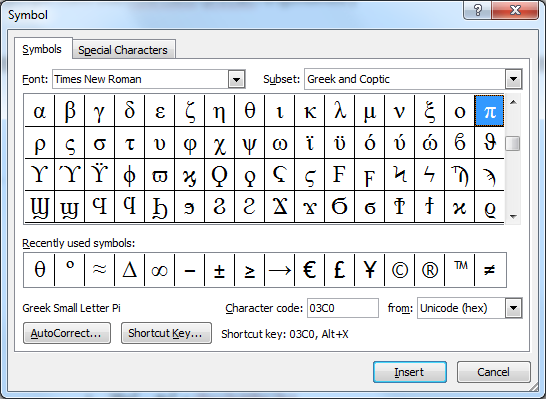
  • In Microsoft Word and PowerPoint, you can find Insert Symbol in the ribbon along the top. Like Character Map, it gives you a list of hundreds of different symbols that you can search through to use. The window looks like this:


  • If you notice the bottom of the box there is a shortcut key programmed in for the letter Ï€. In Microsoft Word, you can use this code to enter in a Ï€ symbol without using this window -- much faster!  To use the code, type 03c0 (those are zeroes) and then hold Alt and press X.  You'll see that the 03c0 becomes a Ï€ symbol! Magic! And many other characters have a character code similar to Ï€. My problem is that there is no way that I'll remember each of those strange character codes every two weeks or so that I need them. So I would have to look them up online and in the time it takes to do that, I could have just found it in the insert symbol box.
  • A related technique is to use an Alt code.  Hold Alt and press 227 on number pad, then let go of Alt and you'll see a Ï€ symbol appear.  Many other letters have a Alt code, but again -- how am I supposed to remember which codes are which?  And why in the world is the Alt code for Ï€ 227 and not something reasonable like 314?!
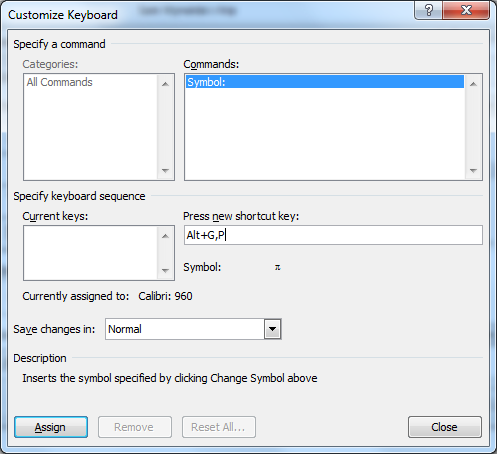
  • My favorite solution to this in Microsoft Word is to use the shortcut button to create my own keyboard shortcuts for each of the symbols I use often!  If you click on the button "Shortcut Key" it will bring up the following form:
    As you can see, I have created a keyboard shortcut that I'll remember, and stored it in Word so that when I return a few weeks later, I can find the Ï€ symbol more quickly!  For me, it made sense to type Alt G, P.  My line of reasoning is that it's a greek letter, Pi.  I have gone ahead and assigned shortcuts similar to this for all the Greek letters that I use on a regular basis:
    • Alt G, D for lowercase delta
    • Alt G, Shift-D for uppercase delta (for "Change in")
    • Alt G, A for alpha (for angles)
    • Alt G, B for beta (for angles)
    • Alt G, Q for Theta (for angles)
    • Alt G, T for Tau (torque in Physics)
    • Alt G, r for Rho (density in Physics)
    • Alt G, W for Omega (rotational velocity in Physics)
    • Alt G Shift-W for captial Omega (Ohm symbol for resistance in Physics)
    • Alt M, . for the mathematical symbol for multiplication
    • Alt M, 2 for the squared symbol
    • Alt M, 3 for the cubed symbol
    • Alt M, R for the square root symbol 
  • While on the topic, I should also mention auto-correct as an option. I remember using that quite frequently during my Spanish classes.  I made it so typing n~ and a' and such created the accents and symbols -- though if I used those characters much now I would probably create a series of Alt codes for them, perhaps with Alt S, N and Alt S, A, etc. 

Saturday, January 12, 2013

Reflections on J-Term 2013

We just finished J-Term and I have so much to write about, but so little time to write, so let me just do quick summaries and if I have any time (this summer?) I'll come back and elaborate.

For those of you who don't know, at our school J-Term is a week-long opportunity for our students to take some unique classes and learn things their teachers don't normally get to do during the school year. For instance, many students took iPad video making, or an interesting Hunger Games exploration, knitting, chess class, etc. The teachers suggest offerings and the students sign up for three different classes they'd like to take.

This year I offered two classes: Astronomy (which I have taught before) and a new class which I called "Did You Get My Email?" but might more formally be called Digital Communications.

Star and Planet Locator
by Edmund Scientific
In Astronomy we learned a 15-20 constellations, discussed how to use a Planisphere, the idea of altitude and azimuth, how to find the planets along the ecliptic, and how the sun moves through different constellations (the zodiac) throughout the year. Next on the list would have been declination and right ascension, but we ran out of time.

The Star and Planet Locator made by Edmund Scientific is an great tool for teaching these concepts -- and at only $3.95 per unit it's one of the cheapest I could find.  I bought mine a few years ago and kind of remember a 25 for $50 deal so if you're interested in a classroom set, look around.

These worksheets I offered:
The other class I taught was new to me -- Digital Communications. I'll admit I'm not proud of how this class turned out because I didn't put the time into it over Christmas break that I should have. In this class we learned about a ton of different technologies, leaning quite heavily on "How Stuff Works" descriptions of: the telegram, telephone, television, computers, hard drive, cd player, text messaging, email, radio, etc. We also studied binary numbers, and spent some time describing how computers convert all information into numbers, which are all converted into binary, which can mean everything can be stored ultimately as a handful of 1's and 0's somewhere.

I also did some hands on materials, though I had ambitions of doing way more. We played around with simple circuits, hooking up batteries and lights. We made a few electromagnets, and I showed them a homemade "byte" -- 8 bits -- which I made with just a piece of wood, 8 nails, and a about 40 ft of wire. I never used it in anyway besides holding it up occasionally when we discussed that 8-bits define a character in Ascii, or that three of these 8-bits define a color of an individual pixel in a picture, and so on.

I learned from this that I enjoy doing things hands-on and should take more time to make that happen in my classroom. I learned that radio shack has a lot of small circuit components for sale, such as LED's, solar panels, resistors, switches, etc and I have a lot of material now that I'll be able to use in our electricity unit in physics.  And I learned that classes will survive, even if you are fully prepped for them. Maybe that wasn't the lesson I should have learned -- but I did.

Monday, January 7, 2013

Keyboard Shortcuts

While teaching some women at church how to do things in PowerPoint, I realized there are a lot of keyboard shortcuts that I use on a daily basis and take for granted. This post is just my attempt to list them all in one place. There are way more than this, and other websites may have a more complete list, but these are the ones that I use on a daily/weekly basis.

If a sibling of mine wants to do a similar thing for Mac's, I would link to it here, or eventually when I have to learn a mac, I'll write a Mac for Windows Users guide.

Windows:
   Alt-Tab - switches from program to program quickly
   Ctrl-Tab - in programs with "tabs" like internet browsers it switches tabs
   Win-Up - Makes a program maximized
   Win-Left - Makes a program take up just the left half of the screen
   Win-Right - Makes a program take up just the right half of the screen
   Win-D - Minimizes everything so you just see your desktop
   Win-Tab - Cycles through your programs like Alt-Tab, but differently
   Ctrl-MouseWheel - Zooms in or out
   PrintScreen - Takes a screen shot of the screen and stores it on the clipboard
   Alt-F4 (don't do this one now!) closes your current program
   Ctrl-F  - Finds a word or phrase on a page

   Shift-Arrows - Selects words, text, cells, slides, etc.
   Shift-Click - Selects everything from your last click till now.
   Ctrl-Click - Adds whatever you clicked to the selection
   Right-Click - Brings up a list of different options
   Right-Click and Drag - Brings up a list of options for dragging, usually move, copy, or Create-Shortcut


Microsoft Word, Excel, Powerpoint, and many other programs:
  Ctrl-X - cut
  Ctrl-C - Copy
  Ctrl-V - Paste (yes, v is paste because P is print)
  Ctrl-S - Save
  Ctrl-A - Selects (all) everything on a page or file
  Ctrl-Z - Undo!! Gets rid of the last thing you did -- like making a mistake
  Ctrl-R - Right aligns things
  Ctrl-E - Center aligns things
  Ctrl-L - Left Aligns things
  Ctrl-B - Bolds
  Ctrl-I - Italicize
  Ctrl-U - Underlines
  Ctrl-K - Makes something a hyperlink

Excel
  F9 - Recalculates all cells - useful if you have random digits in some cells

Powerpoint:
   F5 - Starts running the powerpoint
   Ctrl-F5 - Starts running the powerpoint from the current slide
   B - puts a blank slide up while running powerpoint
   Ctrl-M - creates a new slide

Friday, December 28, 2012

Storage Capabilities of the 8.5x11


A former student of mine had an instagram that inspired a dorky series of tweets between the two of us touting the features of this amazing new technology: the sheet of paper. I was trying to be sarcastic because I hadn't seen a sheet of paper in so long, writing all my essays and lesson plans and everything digitally.

The series of tweets:
The sad tale of an engineer attempting to write an essay. 
 what is that thin white note taking device in front of your laptop? Is that a new Christmas present? Wireless? Bluetooth?
 It's the newest in pressed wood pulp. Functions without a processor and get's great battery life!
 what kinda storage? 200Gb?
 college ruled, 56 lines, expandable to margins. Also compatible with multi-ring long-term storage devices.
 wow 56 lines! I was only familiar with older 33 line models.

Anyway, taking it a step too far I'm sure, I decided to investigate the storage capabilities of a simple sheet of paper. To begin, I found a sheet of paper -- though it took a while. I also had to find a stylus that was compatible with the paper -- after a handful of failed attempts, I found one with enough battery left (you can always count on Sharpie models!) to input text:

I counted the number of characters on each line, including spaces and punctuation.  I found 63, 62, and 65 characters on each line, and so I'm going to average them and suggest that a typical line stores 64 bytes. I'm thrilled this is a power of 2 -- it makes me confident that it's technology, because everything else in technology comes in powers of two.  Let me save that number in memory as 2^6.

After counting the number of available rows, I found another convenient power of 2, or 32 lines.  2^5.

Multiplying these numbers together, I get 2^11 bytes, or 2*(2^10).  2^10 is 1 KB, and so one side of one sheet of paper is 2KB. Utilizing both sides of every sheet of paper yields the following storage capabilities for the following standard models:

70 sheet 1 subject sprial notebook:  280 KB
100 sheet looseleaf unbound package: 400 KB
500 sheet ream of paper: 2 MB

Of course, using different fonts and font sizes could significantly increase or decrease storage capabilities.    
Related Posts Plugin for WordPress, Blogger...